CS EphGit

EphGit is the Computer Science department’s GitLab server. Store code and projects, collaberate and keep a history of your work. Made a wrong move? No Problem! Go back to yesterday with git.
URL: https://evolene.cs.williams.edu
Your instructor or course staff must create your GitLab account before your first login. If Okta sign-in succeeds but GitLab says you are not authorized, ask your instructor — you may not be provisioned yet.
Sign in
From a browser
- Open https://evolene.cs.williams.edu
- You are sent to Williams Okta (campus login)
- After Okta, you return to EphGit, signed in
From the Okta dashboard
- Sign in to Okta at https://sso.williams.edu
- Open the CS EphGit tile
- You land on EphGit, signed in
Create a new project
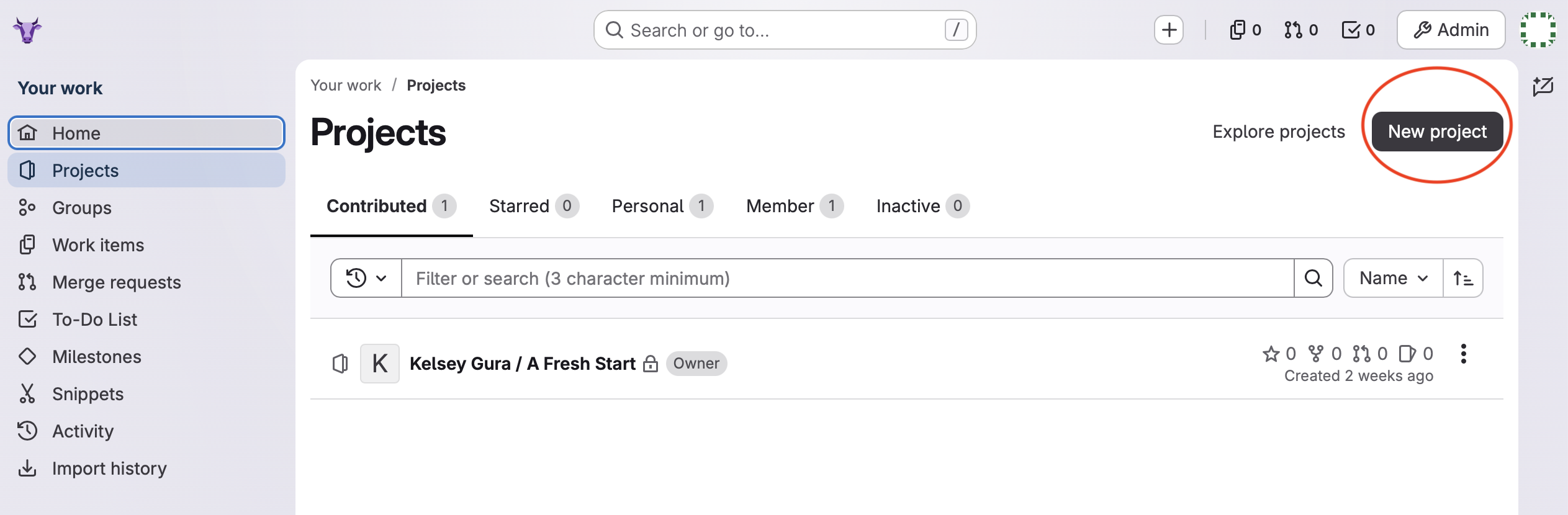
- Sign in to EphGit
- Click New project (or the + menu → New project/repository)
- Choose Create blank project
- Fill in:
- Project name — e.g.
cs136-lab1orfinal-project - Project URL — often your username or a group name from the course
- Visibility — use what your course requires (many course repos are Private)
- Project name — e.g.
- Click Create project
GitLab shows a page with clone URLs and starter commands.
For course work, your instructor may instead give you a group or template project to fork or join — follow their directions if they differ from the steps above.
Using git from the terminal
Work on a CS lab or compute machine or laptop. Replace USERNAME, PROJECT, and paths with your own values.
Clone a project (HTTPS)
cd ~/cs136
git clone https://evolene.cs.williams.edu/USERNAME/PROJECT.git
cd PROJECT
HTTPS may ask for credentials. For routine work on CS machines, SSH (below) is often easier once your SSH key is added to GitLab.
Clone a project (SSH)
cd ~/cs136
git clone git@evolene.cs.williams.edu:USERNAME/PROJECT.git
cd PROJECT
Add your SSH public key under Preferences → SSH Keys in the GitLab web UI if git clone over SSH fails.
Everyday workflow
cd PROJECT
git status
git add file1.py file2.py
git commit -m "Add lab solution"
git push
Pull updates from a partner or the starter repo:
git pullConnect an existing folder to a new empty project
If you already have files locally and created an empty project on GitLab:
cd my-lab-folder
git init
git remote add origin git@evolene.cs.williams.edu:USERNAME/PROJECT.git
git add .
git commit -m "Initial commit"
git branch -M main
git push -u origin main
Tips
- Commit often with clear messages — small commits are easier to undo and review.
- Do not commit secrets (passwords, API keys). Use
.gitignorefor build artifacts and local config. - Project URL in the browser looks like
https://evolene.cs.williams.edu/USERNAME/PROJECT. - If
git pushis rejected, rungit pullfirst, resolve any conflicts, then push again.
For account or access problems, contact your course staff — not OIT for GitLab project permissions.